
How do I access PayCert, and who should I contact if I cannot log in?
You can access PayCert using your SSO credentials. Please submit a help ticket if you are unable to access the system.
Is training available for new users or refresher sessions for PayCert?
Training materials can be found at the following links:
When will payroll certification statements be sent from the PayCert system to department payroll coordinators for review?
Certifications will be generated annually in the University payroll certification system 60 days after the reporting period end date based on the project anniversary date or project end date. Payroll certification statements must be certified within 60 days from when the system sends the statement to the Payroll Coordinator for review. 60 days is inclusive of the Pre-Review conducted by the Payroll Coordinator.
How will the reporting periods be determined in PayCert?
PayCert reporting periods are based on the grant anniversary date (not the first day of the grant anniversary month like the legacy payroll certification system). Payroll certification statements are generated for one year, each year of the project.
For grants that start on a day other than the first of the month, please note that for the initial period of the grant in PayCert (periods between March 1, 2024 – Feb 28, 2025), the reporting period will reflect a one-year period based on the anniversary start date (unless the grant end date is less than a year from the reporting period start date). However, it may include some payroll beyond those dates.
Example: If the grant start and end dates are March 15, 2020-March 14, 2025.
- The last reporting period that was certified was March 1, 2023-February 29, 2024.
- In PayCert, the reporting period is March 15, 2024-March 14, 2025. But this will include payroll from March 1, 2024-March 14, 2024 because that payroll wasn’t certified yet.
What should I do if the payroll listed is incorrect/does not match Banner?
If you notice PayCert salary does not match Banner reports, please contact [email protected] and we will reconcile the two systems. Please note that due to reporting periods now starting on the anniversary date of the grant,
For grants that start on a day other than the first of the month, please note that for the initial period of the grant in PayCert (periods between March 1, 2024 – Feb 28, 2025), the reporting period will reflect a one-year period based on the anniversary start date (unless the grant end date is less than a year from the reporting period start date). But it may include some payroll beyond those dates.
Example:
If the grant start and end dates are March 15, 2020 – March 14, 2025.
In PayCert, the reporting period is March 15, 2024-March 14, 2025. But this will include payroll from March 1, 2024-March 14, 2024 because that payroll was not certified yet.
The last reporting period that was certified was March 1, 2023-February 29, 2024.
How is the Percent (%) column on the project statement calculated?
The Percent % column on the project statement is the % paid to the grant (through direct pay, cost share, and/or salary over the cap) compared to the total salary for positions charged to the award for an individual during the reporting period of the project statement.
Total salary includes:
- All direct pay, cost share, salary over the cap
- Summer pay
- Eminent scholar stipends when applicable
On the Payroll Certification statement:
- To see the 100% distribution of an individual, click the document icon in the Details Column on the project statement.
- To see the breakdown of the % for the project statement you are viewing, click the dollar sign icon in the Details Column.
If a PI is unable to certify, how does their payroll certification statement get certified?
The new payroll certification system is now electronic, and a PI can certify anywhere they can log into VPN. In limited extenuating circumstances, if a PI is unable to certify, a designee can be assigned to certify on their behalf. Please email [email protected] to discuss this option.
Is there a legend to explain what the status icons mean throughout the PayCert system?
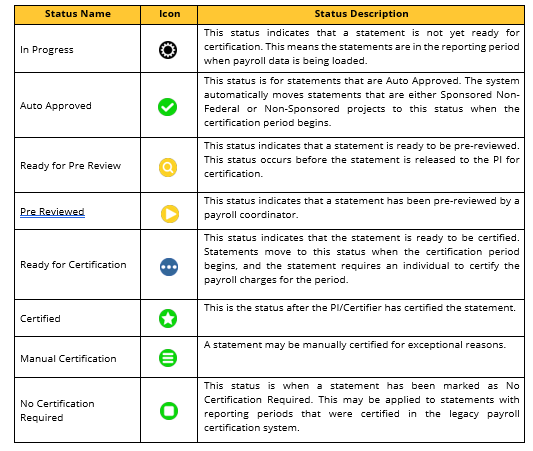
In the department dashboard, the icons in the Statements column represent the status of each statement. Refer to the table below for the status name, icon, and description.
On the Department Dashboard, why are there multiple icons showing in the Payroll Certifications tab?
Each icon represents a payroll certification statement for each grant and are ordered by the most recent reporting period to the oldest reporting period from left to right.

The payroll certification statement does not seem to reflect salary appropriately and requires reallocation. How do I make these changes?
If the payroll certification statement does not accurately reflect salary charged and work performed on the project, please make a note in the comments on the payroll certification statement and then submit any necessary reallocations through Banner Self Service. Adjustments will be reflected in the next statement period based on the transaction date. Statements cannot be amended once certified.
How do I add, delete, or update payroll coordinators?
College Administrators can make updates to payroll coordinators in the Department Dashboard. To assign a Primary Department Coordinator not already added to the department, select Manage from the top navigator, and Department Dashboard from the sub navigator.

Search for the department in the Department Dashboard and select choose.

Navigate to the Department Information tab and click the Add button in the Department Payroll Coordinator(s) section.
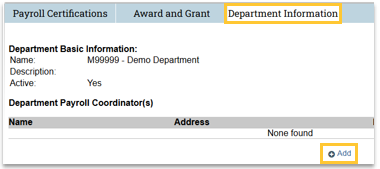
The Manage Assignments window will appear after selecting the +Add button. Enter the name of the employee to add as a Primary Department Payroll Coordinator in the Select User field. Click the name of the user from the search field to select that employee.

Click Save to add the employee as a Department Coordinator.

Close the Manage Assignments window after adding the new Department Coordinators.
Click the Department Information tab.

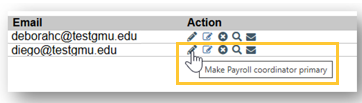
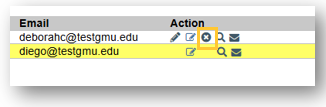
Hover over the icons in the Action column to see which actions are available. To change the Primary Department Coordinator, click the Make Payroll Coordinator Primary icon.
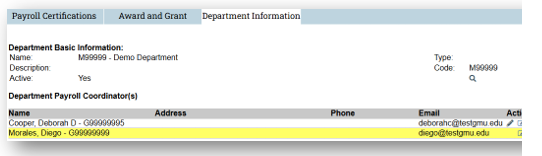
Return to the Department Information tab. The Primary Department Coordinator is now highlighted in yellow.
To change a Primary Department Coordinator, just click the Make Payroll Coordinator Primary icon. Next to the new Primary Department Coordinator.
To delete a Department Payroll Coordinator, click the Remove Payroll Coordinator icon.
As a College Administrator, which report can I use to view all outstanding statements within my college (over all roll-up departments)?
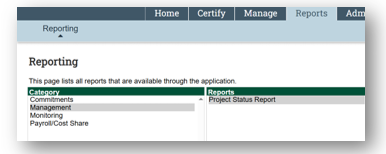
Using the Project Status Report (Navigation: Reports Tab > Reporting > Under the Management Category, Select Project Status Report.
Select Statuses: Ready for Pre Review, Pre Reviewed and Ready for Certification.
School/Department: Enter the college (this can work for each individual departments also).
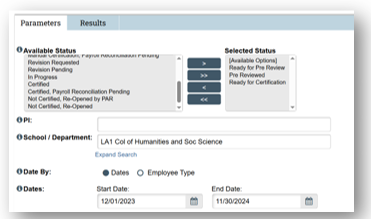
Dates: Enter a start and end date.
NOTE: Because Mason grants have overlapping reporting periods, the date parameter is going to include any periods that have payroll during the months defined in the reporting parameters. Once the report results are displayed, you can click on the header Nickname which is the Reporting Period Start and End Dates to sort by reporting period. You can also export all reports to excel to allow you to sort, filter, pivot the data easily.
Are there email notifications/reminders that get sent to certifiers when the statements are ready to certify and they are due?*
Yes, the certifier (PI) gets a notification:
- When the statement is Ready for Certification (this email goes out the day after the Payroll Coordinator completes the Pre Review).
- Reminder emails are sent if the statement is still not certified:
- 30 days from the due date
- 15 days from the due date
- 7 days from the due date
- These notifications are sent at 7:00 AM daily.
How will final certification statements be generated?
Closeout administrators will send statements through PayCert at the time an award is reviewed for closeout.
Will I be able to view historical certifications?
PayCert Certifications are viewable in the following ways:
- In the Project Status Report (selecting “Certified” status in the parameter).
- Using the Search box at the top right of the PayCert screen, enter the Grant Number. On the Grant Summary page, all statements related to the grant are listed under the “Project Statements” tab.
- From the Department Dashboard, all statements show for a Grant on the Project Certifications tab.
Can multiple payroll coordinators pre-review the statement, or does it have to be the primary?
All College Administrators and Payroll Coordinators can pre-review a project statement for a department to which they are assigned. The only difference is the person designated as the primary (listed as the Primary Payroll Coordinator on the Department Dashboard Project Certifications tab under “Primary Payroll Coordinator” receives the email notifications for Pre Review and has these statements listed on their worklist. College Administrators and Non-Primary Coordinators do NOT receive notifications and do NOT have project statements, they are not primary on listed on their Home Page.
Statements can be accessed by College Administrators and Non-Primary Coordinators from the Department Dashboard.
Will salary and wages that are cost shared be certified as part of the payroll certification statement?
Yes, salary and wages charged to a non-sponsored source of funding to meet a cost share requirement for the project will be shown on the statement in the cost share column.
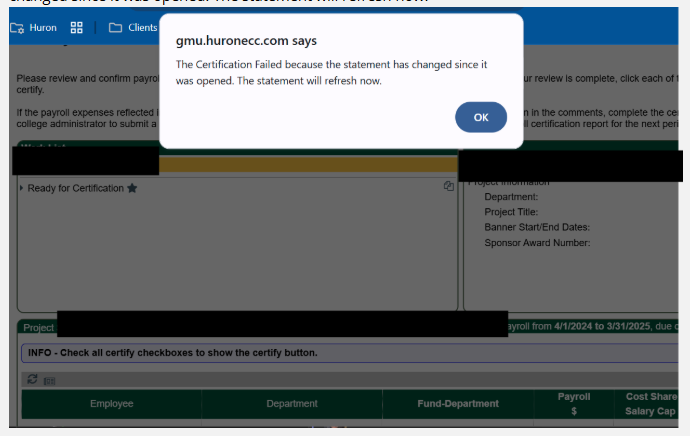
I am receiving an error when trying to certify: ‘The Certification Failed because the statement has changed since it was opened. The statement will refresh now.’ How do I workaround this issue?
To work around this issue the certifier can try the following steps:
- Click the “OK” button on the error box.
- The screen will refresh back to the statement.
- Click the “Reset button”.
- Once the screen refreshes, the statement should process when certified.
I am receiving an error message ‘Request Entity Too Large’. How do I workaround the issue?
To work around this issue try one of the following steps:
1) Delete browsing Cookies
- From the screenshot it looks like you are using Chrome as your internet browser. At the top right, next to “Relaunch to update” there are three dots.
- Click those three dots.
- Select “Delete browsing data” halfway down the menu.
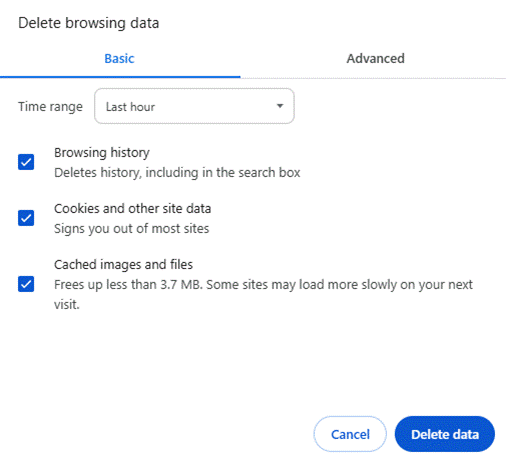
- In the popup, you will see something that looks like below.
- Ensure that the “Cookies and other site data” is checked (the others are optional if you want to delete them or not).
- Click “Delete Data”.
- For extra measure, please close out your browser windows and reopen.
OR
2) Go Incognito
- From the same three dots in the instructions above, click the third option “New Incognito Window”.
- Click on the PayCert Link https://paycert.ramp.gmu.edu.